


Open source drawing software offers artists and designers a free and flexible way to create digital art, illustrations, and paintings without expensive subscriptions. Whether you are looking for an open source paint program, a powerful drawing tool, or a beginner-friendly drawing app, this guide compares the best open source drawing software available today, their unique features, pros and cons, and how you can further Enhancing your digital artwork using Aiarty Image Enhancer.
Open source drawing software like Krita, GIMP, and Inkscape offers free, professional-grade tools for digital art, from raster painting to vector illustration and 2D animation. However, post-creation enhancement can be time-consuming and manual.
Aiarty Image Enhancer complements these tools perfectly, providing AI-powered sharpening, denoising, and detail enhancement to elevate your artwork to professional quality in just a few clicks.
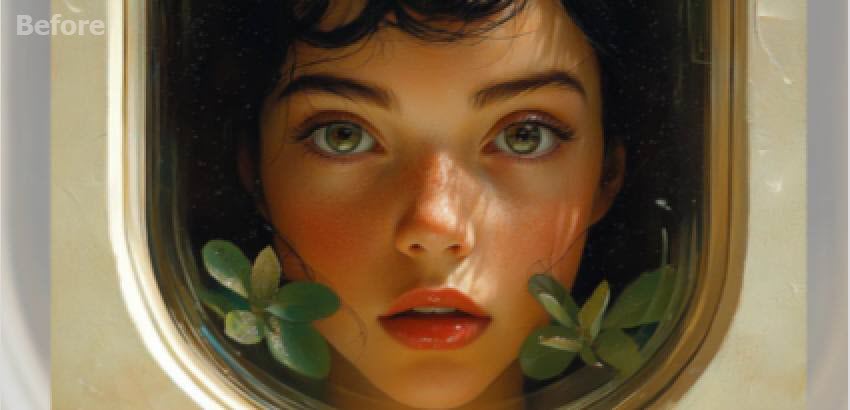
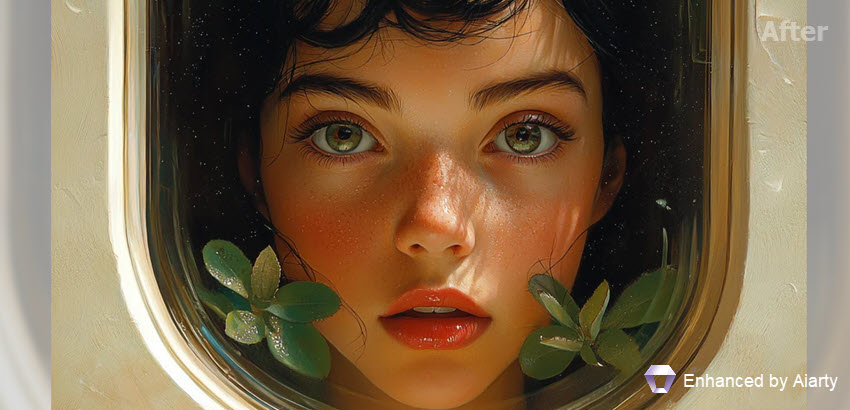

Use Aiarty Image Enhancer to enhance drawing pictures with pro-level detail.
What to Look for in Open Source Drawing Software
Choosing the right open source drawing software depends largely on your workflow, skill level, and creative goals. Whether you’re sketching, painting, or working on detailed illustrations, keep these key factors in mind:
- Supported Operating Systems: Ensure compatibility with Windows, macOS, Linux, or even mobile platforms.
- Raster vs Vector Support: Raster programs like Krita and GIMP are ideal for painting, while vector tools like Inkscape excel at logos and scalable designs.
- Brush Engine & Textures: Look for a variety of brushes, customizable options, and natural texture simulation.
- Layers and Masks: A robust layer system with blending modes is essential for complex compositions.
- Animation Features: If you create frame-by-frame animation, check for timeline and frame management support.
- Community & Resources: Large communities provide tutorials, plugins, and templates, enhancing productivity.
- File Compatibility: Check support for formats such as PSD, PNG, JPEG, SVG, or TIFF.
- Performance & Hardware: Pen pressure, tablet support, and GPU acceleration can make a huge difference.
Top 10 Free and Open Source Drawing Software
With these factors in mind, let’s explore some of the top free and open source drawing software options available in 2026. Each tool brings its own strengths, so you can find the one that best matches your creative needs.
1. Krita: Best for Digital Painting and Illustration
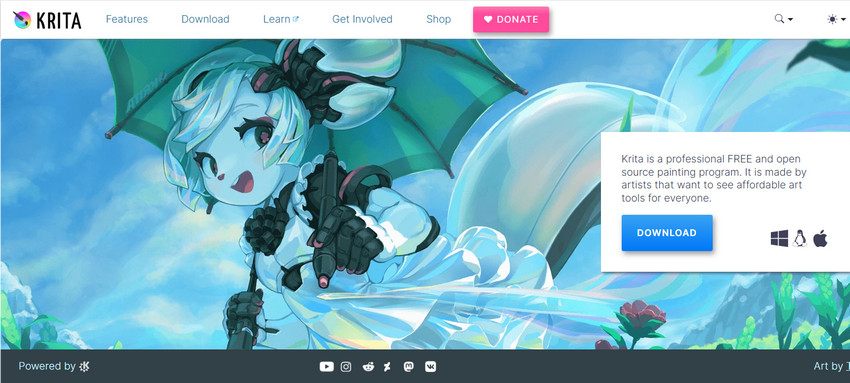
Krita is one of the best open source drawing software options for digital artists and illustrators. As a free and open source paint program, this digital art software provides professional-grade brushes, layers, and color management for concept art, comics, and illustration.
Key Features:
- Advanced brush engines with over 100 preloaded brushes
- Layer management with masks and blend modes
- Animation timeline and onion skinning
- HDR painting support and PSD compatibility
- Cross-platform: Windows, macOS, Linux
- Excellent for digital painting and illustration
- Frequent updates and strong community support
- Extensive tutorials and brush resources
- Steeper learning curve for beginners
- Some users report performance issues with very large canvases
- PSD import/export can occasionally have minor inconsistencies
2. GIMP: Best for Image Editing and Drawing
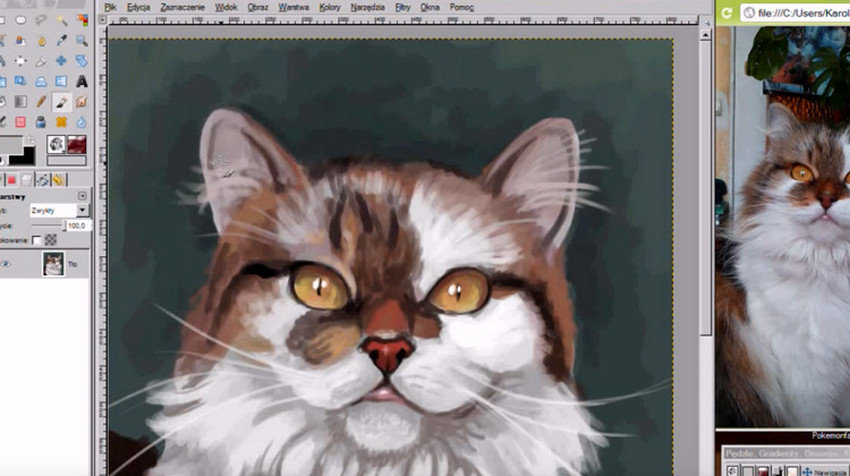
GIMP (GNU Image Manipulation Program) is a powerful open source art software widely recognized for its photo editing and raster graphic manipulation. It’s frequently used by designers, photographers, and digital artists, offering a versatile toolkit that covers everything from simple retouching to advanced compositing and painting.
Key Features:
- Wide range of filters, effects, and image correction tools
- Layer management with masks and blend modes
- Robust plugin ecosystem for extended functionality
- Supports PSD and many other common image formats
- Cross-platform: Windows, macOS, Linux
- Mature and stable software with long development history
- Excellent for photo retouching, compositing, and digital painting
- Highly customizable through plugins and scripts
- Brush engine less intuitive compared to Krita
- Limited animation features
- User interface may feel outdated for beginners
3. Inkscape: Best for Vector Drawing
Inkscape is a leading open source drawing software focused on vector graphics. It’s a popular alternative to Adobe Illustrator, offering powerful tools for creating logos, icons, diagrams, and detailed illustrations. With its extensive features and SVG-native format, it is widely used by both professionals and hobbyists.
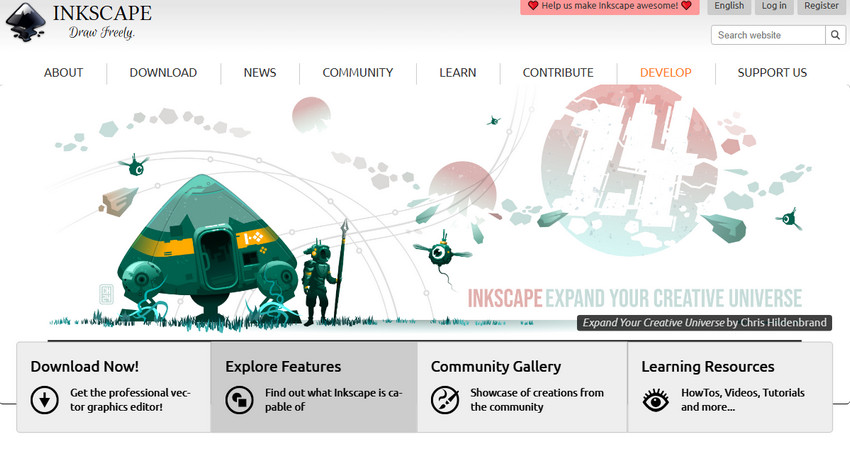
Key Features:
- Vector-based editing with SVG as the default format
- Advanced path and node editing tools
- Text tools with multi-line support
- Extensions and add-ons for extended functionality
- Cross-platform: Windows, macOS, Linux
- Excellent free alternative to Illustrator
- Strong community and frequent updates
- Ideal for scalable artwork like logos and icons
- Not designed for raster editing or photo manipulation
- Performance can slow with very complex projects
- Interface may feel overwhelming to beginners
4. Pencil2D: Best for 2D Animation
Pencil2D is a free and open source drawing software built specifically for traditional hand-drawn animation. Its lightweight design and user-friendly interface make it a great choice for beginners learning frame-by-frame animation without unnecessary complexity.
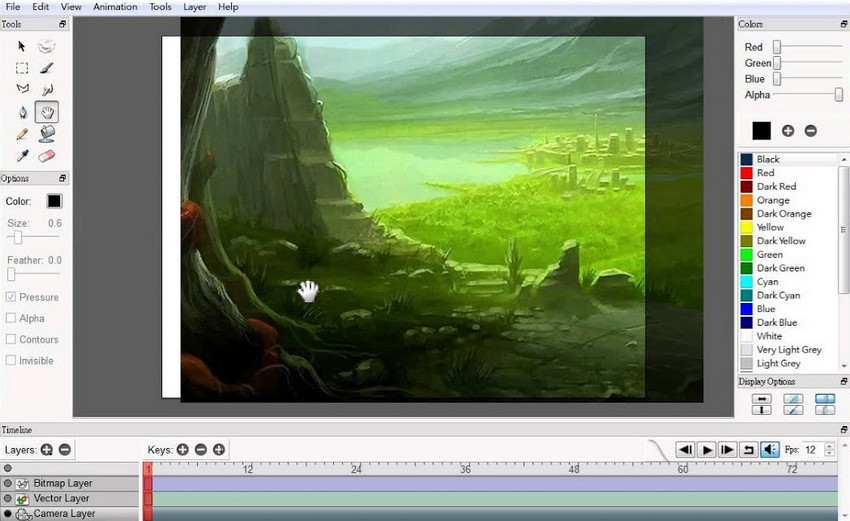
Key Features:
- Raster and vector layers for versatile drawing
- Onion skinning and timeline support for animation
- Minimalist, distraction-free interface
- Cross-platform: Windows, macOS, Linux
- Lightweight and easy to learn for beginners
- Focused on 2D animation workflow
- Streamlined, distraction-free design
- Limited painting tools and effects
- Not ideal for detailed illustration or digital painting
- Smaller community and fewer learning resources
5. Artweaver Free
Artweaver Free is a lightweight drawing tool designed for digital painting and sketching. It features realistic brush effects, layer support, and an intuitive interface, making it appealing to hobbyists and beginner artists who want a Photoshop-like experience without paying for a license. However, Artweaver Free is freeware, not open-source software, and some advanced features are reserved for the paid Artweaver Plus edition.
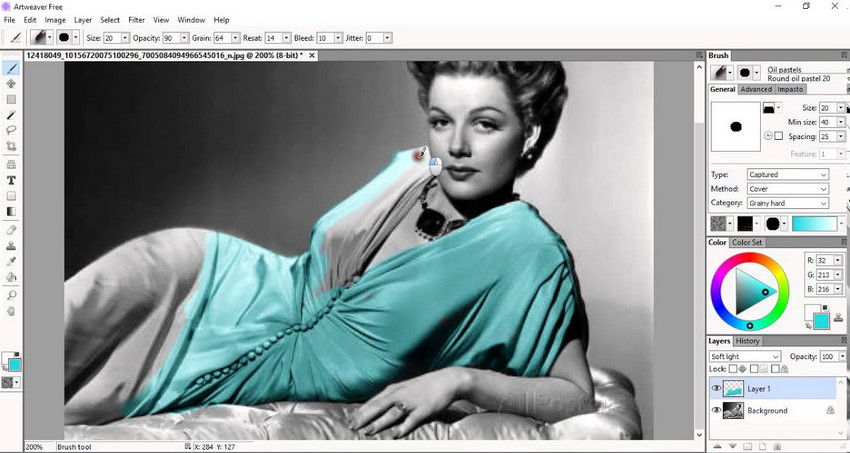
Key Features:
- Realistic brushes for natural drawing and painting
- Layer and transparency support
- Customizable workspace and tools
- Windows-only support
- Free version for personal use, with some advanced features available only in Artweaver Plus
- Easy-to-use, beginner-friendly interface
- Good selection of realistic brushes
- Lightweight and suitable for basic digital painting
- Free to use for personal projects
- Not open-source software
- Some advanced features are exclusive to Artweaver Plus
- Limited advanced editing capabilities compared with Krita or GIMP
- Windows-only availability
6. LazPaint
LazPaint is a simple, open source image editor and drawing program often considered an alternative to Paint.NET. It supports both raster and vector graphics, making it versatile for basic image editing, quick sketches, or lightweight desigan tasks.
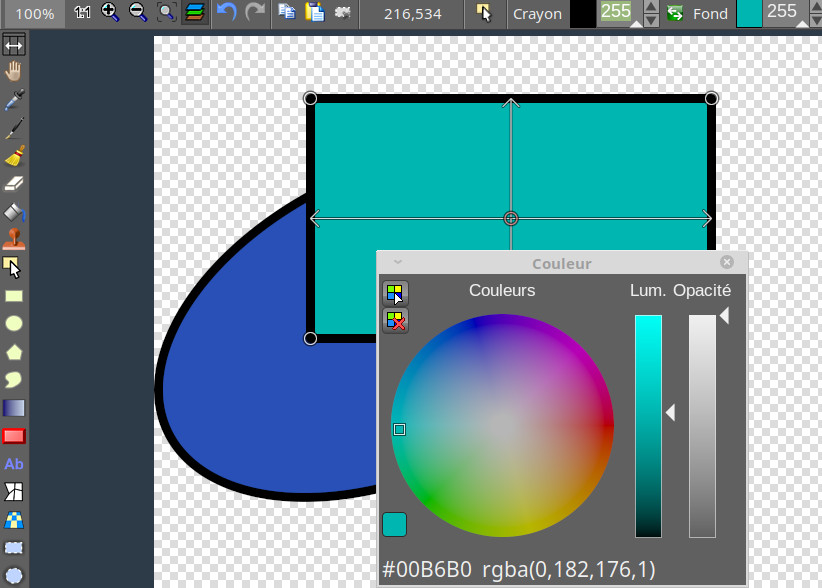
Key Features:
- Support for layers and transparency
- Vector shapes and gradient editing
- Portable and lightweight software
- Cross-platform: Windows, Linux
- Lightweight and portable
- Good for quick edits and sketches
- Supports both raster and vector work
- Lacks advanced features of Krita or Inkscape
- Interface feels dated
- Limited community and updates
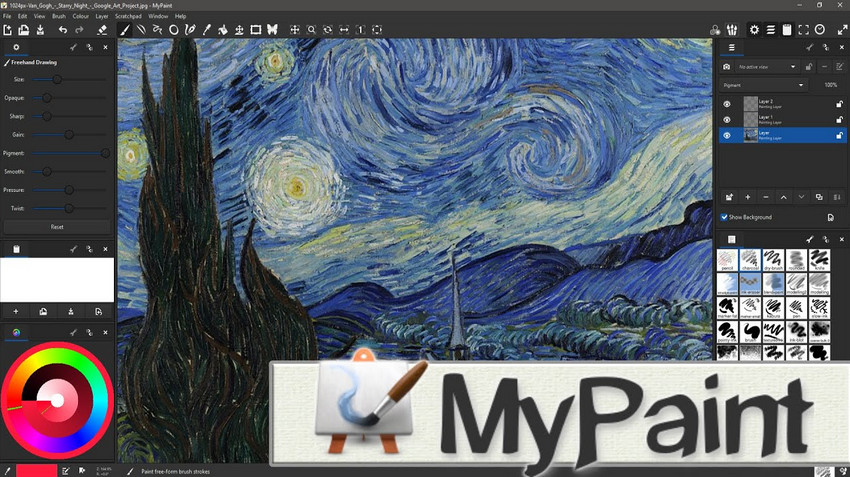
7. MyPaint: Best for Digital Painting
MyPaint is an open source digital painting software focused on providing a natural drawing experience. It offers an unlimited canvas, pressure-sensitive brush engine, and distraction-free design, making it a favorite among illustrators and concept artists.
Key Features:
- Unlimited canvas for creative freedom
- Pressure-sensitive brush engine
- Minimalist interface for distraction-free painting
- Cross-platform: Windows, macOS, Linux
- Excellent for digital painting and sketching
- Fast, responsive brush engine
- Lightweight and open source
- Not designed for photo editing or design
- Fewer advanced features than Krita
- Learning resources are limited
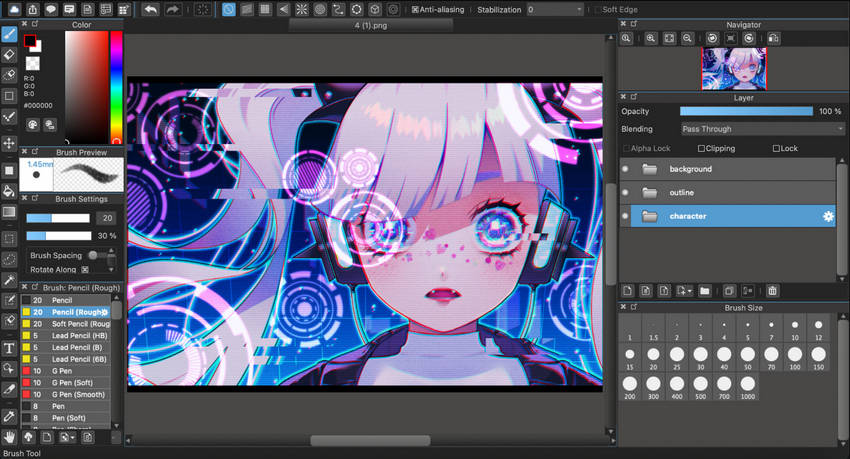
8. MediBang Paint: Best for Anime-style Digital Illustration
MediBang Paint is a free digital painting and manga creation program for Windows and macOS, with mobile versions also available. It offers customizable brushes, layers, comic panel tools, and screen tones, making it a good choice for beginners, manga artists, and illustrators who want to create digital artwork without paying for basic drawing features.
Key Features:
- Customizable brushes for sketching, inking, and coloring
- Layers and blending tools for detailed illustrations
- Comic panel creation tools and built-in screen tones
- Available for Windows, macOS, iOS, and Android
- Free basic drawing features
- Well suited to manga and anime-style illustrations
- Supports drawing across desktop and mobile devices
- Some brushes, materials, and features require a paid plan
- Cloud features require an internet connection
- Not open source
9. Microsoft Fresh Paint
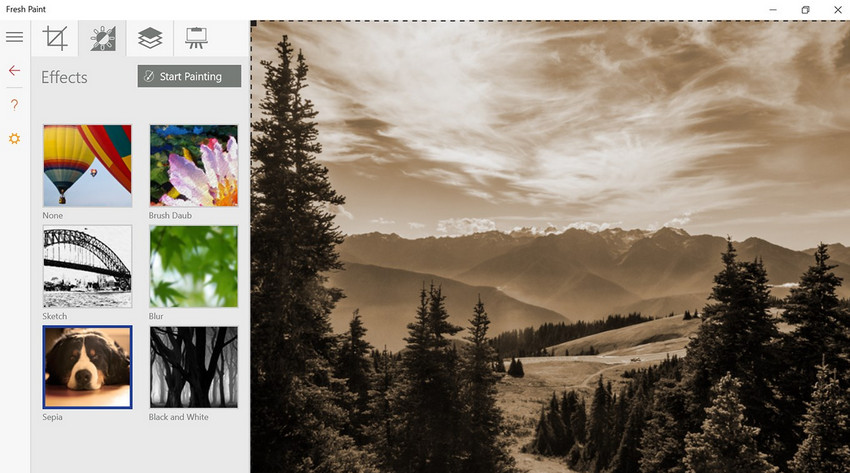
Microsoft Fresh Paint is a free painting app designed to simulate real-world painting techniques. With natural brushes, realistic color blending, and an intuitive interface, it’s great for kids, hobbyists, and anyone who enjoys traditional-style painting digitally.
Key Features:
- Realistic oil, watercolor, and pencil effects
- Natural blending and paint drying simulation
- Touch and stylus support
- Available for Windows devices
- Realistic painting simulation
- Fun and accessible for beginners
- Touch-friendly interface
- Lacks advanced digital art tools
- Windows-only availability
- No vector or animation support
10. LibreCAD: Best for 2D CAD Drawing
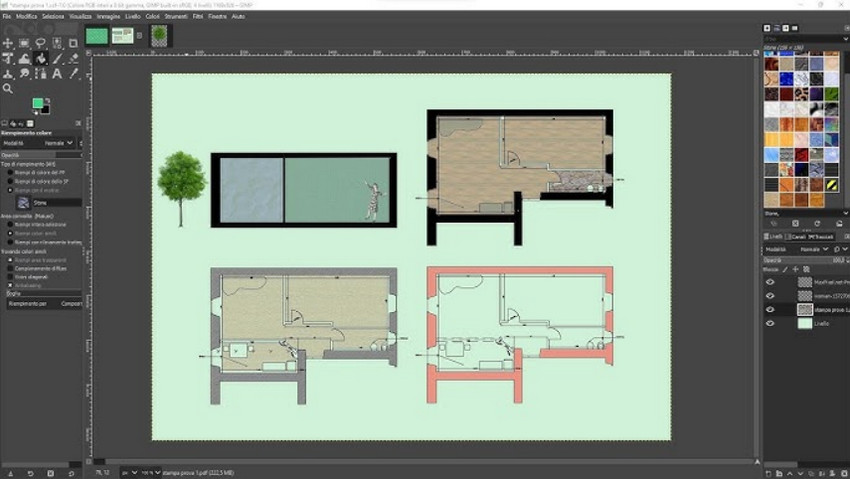
LibreCAD is a free, open source 2D CAD software designed for technical drawing. While not a traditional art program, it’s powerful for creating architectural designs, engineering schematics, and precision-based technical drawings, making it a strong alternative to AutoCAD for 2D work.
Key Features:
- Professional-grade 2D drafting tools
- Supports DXF file format
- Customizable interface and plugins
- Cross-platform: Windows, macOS, Linux
- Free AutoCAD alternative for 2D work
- Precision drawing tools
- Cross-platform compatibility
- Not designed for digital art or painting
- Steeper learning curve for beginners
- Fewer features than commercial CAD software
After exploring the top free and open source drawing software, you might be looking for a way to make your digital paintings sharper, more vibrant, and professional-looking. Aiarty Image Enhancer can instantly enhance the quality of your drawings and paintings, bringing out every detail and color with ease.
Enhance the Quality of Your Drawing Paintings with Aiarty Image Enhancer
While these open source drawing software provide a solid foundation for digital art, enhancing your final output can dramatically improve quality. Aiarty Image Enhancer is designed to automatically sharpen, denoise, and enhance details in your artwork, ensuring professional results without manual editing.
Here’s why it’s a valuable tool for artists:
- Upscale to 32K for Print: Transform your artwork into ultra-high resolution files suitable for large-format printing without losing clarity or detail.
- Rich Details and Textures: Enhance the fine details, brush strokes, and textures in your paintings, making them look more vivid and professional.
- Batch Processing: Save time by enhancing multiple artworks at once, perfect for portfolios, online shops, or art collections.
- Ease of Use: With a simple, intuitive interface, you don’t need advanced technical skills—just upload your images and let Aiarty do the rest.
How Aiarty Image Enhancer Complements Open Source Drawing Tools
Step 1. Export from Krita, GIMP, Inkscape, or Other Software
Save your finished artwork in a high-resolution format such as PNG or TIFF to preserve all the details, layers, and color fidelity.
Step 2. Upload to Aiarty Image Enhancer for Enhancement
Take advantage of Aiarty’s automated enhancement tools to upscale your drawing or painting, enrich textures, sharpen brush strokes, and boost color vibrancy.
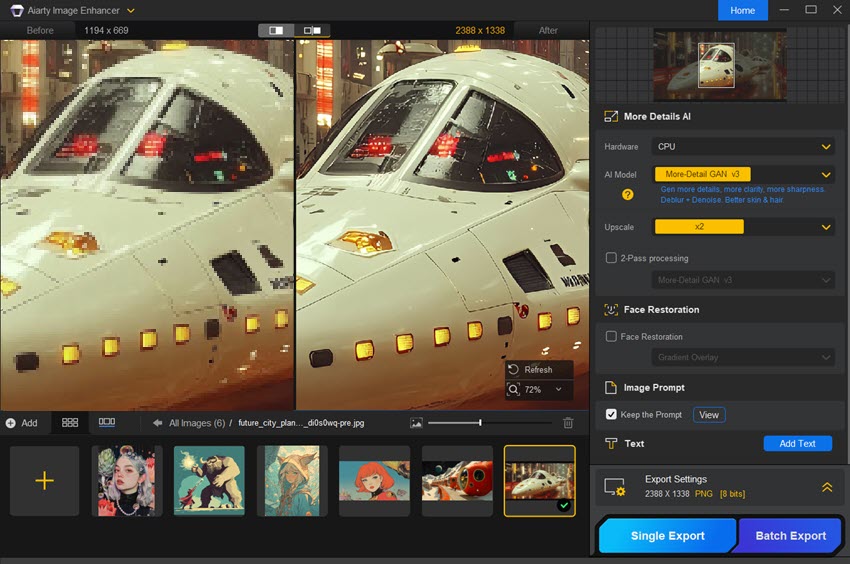
Step 3. Final Review and Export
Carefully examine the enhanced artwork, appreciating the improved details and textures. Then export your final painting artwork for printing or sharing online.
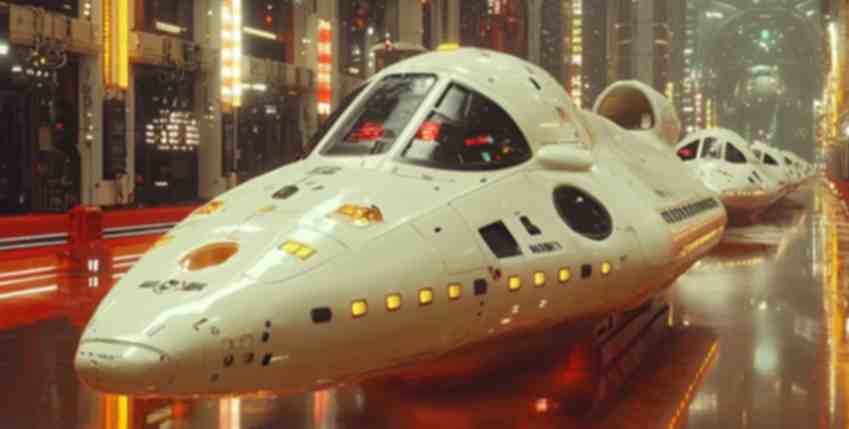
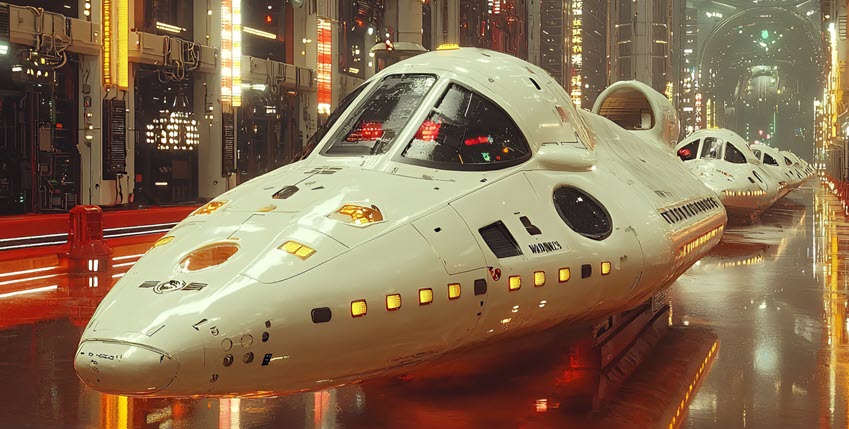
By combining the flexibility of open source tools with Aiarty’s AI-powered enhancements, artists can achieve studio-quality results without expensive software subscriptions.
Conclusion
The world of open source drawing software offers a powerful and accessible range of tools for digital artists. From the detailed painting capabilities of Krita, the photo-editing versatility of GIMP, the vector precision of Inkscape, to animation tools like Pencil2D and lightweight options like LazPaint and Artweaver Free, there’s a tool for every artistic need.
To truly elevate your digital creations, integrating Aiarty Image Enhancer into your workflow allows for automatic enhancement of details, color, and clarity, transforming your open source artwork into polished, professional-grade images.
Explore these free tools, combine them with Aiarty, and bring your digital art to the next level.
 FAQ: Open Source Drawing Software
Krita is a strong choice for digital painting and illustration, while GIMP is better suited to image editing and compositing. Inkscape is ideal for vector graphics, and MyPaint focuses on digital painting. The best option depends on your drawing style and workflow.
Free drawing software costs nothing to use, but its source code may not be available. Open source drawing software makes its source code available under a license that allows users to inspect, modify, and redistribute it under specified conditions. Many open source drawing programs are free to download, but free software is not always open source.
Yes. Krita is a good starting point for digital painting and illustration, while Inkscape is useful for learning vector graphics. Beginners can start with basic brushes and tools, then explore more advanced features as their skills improve.
Raster software such as Krita, GIMP, and MyPaint is suitable for digital painting, textured illustrations, and detailed artwork. Vector software such as Inkscape is better for logos, icons, and scalable graphics. LibreCAD serves a different purpose, focusing on precise 2D technical drawings rather than general illustration.
Format support varies by program. GIMP and Krita can open PSD files, but some Photoshop-specific features, effects, or layer properties may not transfer perfectly. PNG and JPEG are widely supported, while SVG and TIFF support depends on the application and workflow.
Krita is a good free option for beginners interested in digital painting and illustration. Inkscape is better for vector graphics, while GIMP is useful for combining image editing with drawing. Choose based on the type of artwork you want to create and the tools you need.
Many open source drawing programs support Windows, macOS, and Linux, but compatibility varies by application and version. Krita, GIMP, and Inkscape support all three desktop platforms. Check each program's official website for current system requirements and download options.
You May Also Like


This post was written by Brenda Peng who is a seasoned editor at Digiarty Software who loves turning ordinary photos into extraordinary works of art. With AI assistance for brainstorming and drafting, the post is reviewed for accuracy by our expert Abby Poole for her expertise in this field.
